Three-finger gestures
On USB-C A3120, swipe left or right to switch desktops, up for Task View, or down to show the desktop.
Tenon adds multi-finger gestures, tap-to-click and click-firmness controls to the USB-C Magic Trackpad A3120. Lightning Magic Trackpad 2 A1535 supports scrolling, clicking and dragging. Both models connect over Bluetooth or USB.
Try Pro free for 30 days, with no account or card needed. Requires Windows 10 22H2 or Windows 11 on an x64 PC. Windows on ARM is not supported.
Guides: connect it · gestures by model · compare to Magic Utilities
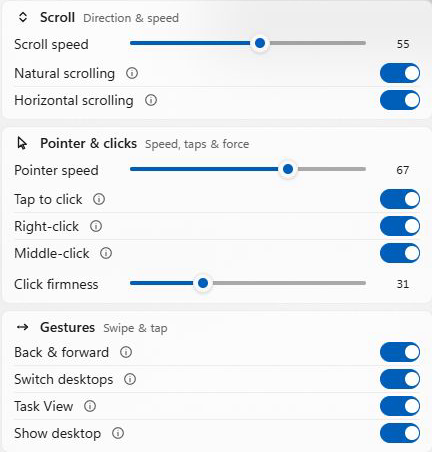
On USB-C A3120, swipe left or right to switch desktops, up for Task View, or down to show the desktop.
USB-C A3120 supports tap-to-click, two-finger right-click and pressure-based clicking. Adjust click firmness in Tenon.
Two-finger scrolling and pointer control on both supported models, with scrolling direction and speed settings.
Tenon supports USB-C A3120 and Lightning A1535. Features and battery reporting depend on the model and connection; check the supported-device list before installing. Tenon uses its own gesture engine. Configure its built-in actions in Tenon; Windows Precision Touchpad settings and custom gesture mappings do not apply.
After the trial, basic input and Magic-device battery status stay free. Paid Pro is optional: US$50/year or US$90 every two years for one PC. See Pro pricing.