Magic Trackpad gestures on Windows: what your model supports
Your Magic Trackpad's model determines which features Tenon adds. USB-C A3120 supports built-in multi-finger gestures; Lightning A1535 supports scrolling, clicking and dragging. Here's what to expect and where to configure it.
Check your model first
Tenon supports USB-C Magic Trackpad A3120 and Lightning Magic Trackpad 2 A1535, over Bluetooth or USB. The original AA-battery Magic Trackpad is not supported. You need Windows 10 22H2 or Windows 11 on an x64 PC; Windows on ARM is not supported. Check the supported-device list for connection and battery details.
USB-C A3120: built-in gestures
With Tenon Pro or an active trial, these are the actions available on the USB-C model:
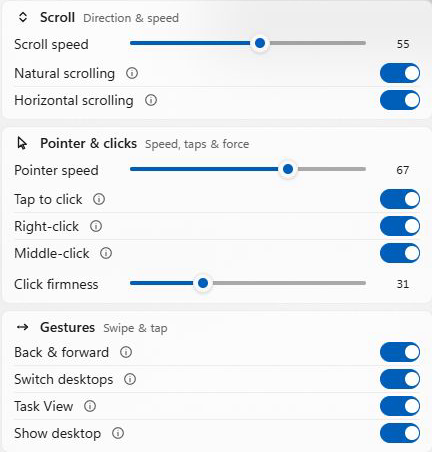
- Two-finger scroll — smooth vertical and horizontal scrolling.
- Two-finger swipe — back and forward between pages.
- Three-finger swipe left or right — switch virtual desktops.
- Three-finger swipe up — open Task View.
- Three-finger swipe down — show the desktop.
- One-finger tap — click; two-finger tap — right-click; three-finger tap — middle-click.
Press to click, or hold the press while moving to drag. These basic actions remain available after the trial; Pro also lets you adjust Click firmness in Tenon.
Lightning A1535: scrolling, clicking and dragging
The Lightning model supports pointer movement, two-finger scrolling, clicking and dragging. The USB-C model's multi-finger navigation and tap gesture list above does not describe Lightning support. Both USB and Bluetooth input are supported.
Set up gestures in Tenon
- Connect by USB, or pair in Windows Bluetooth settings. Follow the connection guide if needed.
- Install Tenon and open its Magic Trackpad panel.
- Adjust Scroll speed and Natural scrolling. On USB-C A3120, use the Gestures section to enable or disable the built-in actions, and Pointer & clicks for taps and click firmness.
Frequently asked
Which Magic Trackpad gestures work with Tenon on Windows?
USB-C Magic Trackpad A3120 supports two-finger scrolling and navigation, three-finger desktop gestures, tap-to-click and pressure-based clicking. Lightning Magic Trackpad 2 A1535 supports scrolling, clicking and dragging. Both work over Bluetooth or USB; the original AA-battery trackpad is not supported.
Can I change the gesture actions in Windows Settings?
Tenon uses its own gesture engine, not Windows Precision Touchpad. Use Tenon to enable or disable its built-in gesture actions. Custom gesture-to-action mappings are not available.