Media keys or F1–F12
Choose your default in Tenon. Use the top row for volume and playback, then hold Globe or Fn for function keys. You can also make F1–F12 the default.
Set up the function row →Use the volume and playback keys, choose F1–F12 when you need them, and use Command for familiar shortcuts. Tenon brings these controls to supported Apple Magic Keyboards on Windows.
USB-C A3119 (Touch ID and Numeric Keypad) and Lightning A2450 · Bluetooth or USB
Windows 11 or Windows 10 22H2, x64 · Touch ID sign-in is not supported
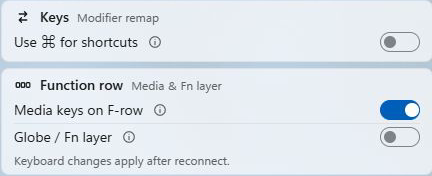
Choose your default in Tenon. Use the top row for volume and playback, then hold Globe or Fn for function keys. You can also make F1–F12 the default.
Set up the function row →Turn on “Use ⌘ for shortcuts” to make Command send Control. Use ⌘C and ⌘V in Windows apps while your other keyboards keep their usual keys.
Set up Command shortcuts →See battery status in Tenon and the system tray. Lightning A2450 reports battery over Bluetooth and USB; USB-C A3119 reports it over USB. Battery status stays free.
The same keyboard controls work over Bluetooth and a USB data cable on supported models.
Keyboard controls are a Pro feature. See what is included with Tenon. For brightness-key behavior and setup help, use the function-key troubleshooting guide.
Tenon supports the USB-C Magic Keyboard with Touch ID and Numeric Keypad (A3119) and the Lightning A2450. Touch ID fingerprint sign-in is not supported. Other Magic Keyboard models are not supported yet, and non-US layouts are not confirmed.
See model and Windows requirements →Yes. Supported models work over Bluetooth or a USB data cable. Tenon adds media and function-key controls, Command shortcuts and battery status on Windows 11 and Windows 10 22H2, x64. Windows on ARM and 32-bit Windows are not supported.
No. The supported Magic Keyboard with Touch ID and Numeric Keypad (A3119) can be used for typing and Tenon’s keyboard features, but fingerprint sign-in is not supported.
The Use ⌘ for shortcuts setting applies to the Magic Keyboard. It makes Command send Control for Windows shortcuts without changing the behavior of your other keyboards.
Check your model and download Tenon. Try the keyboard controls free for 30 days.