How to fix Magic Mouse scrolling on Windows
A Magic Mouse can pair with a Windows PC and work for pointing and clicking while its touch surface does not scroll. Start by checking the mouse model, then choose a compatible driver or adjust the one you already use.
Why Magic Mouse scrolling doesn't work on Windows
The Magic Mouse has no scroll wheel. Scrolling comes from its touch-sensitive top surface, and basic Bluetooth pairing may not enable it. Scrolling needs a compatible driver. If you already have one, check its settings and connection before reinstalling.
Method 1: Apple Boot Camp drivers (free)
If you run Windows through Boot Camp on a supported Intel Mac, use Apple's Windows support software instructions to download or repair the drivers for that Mac.
Apple also offers some older Boot Camp packages as direct downloads. Those packages list specific Mac models and older Windows versions. They are not a universal Magic Mouse driver for every Windows PC, and their availability does not establish support for a USB-C or Lightning mouse on your setup.
Method 2: a third-party scrolling utility
A utility built for Apple devices on Windows can provide scrolling and additional settings. Check its exact model support, Windows requirements, trial terms and licensing before installing. See the Tenon and Magic Utilities comparison for two options.
Method 3: Tenon
Tenon adds smooth scrolling and built-in surface gestures to USB-C Magic Mouse and Lightning Magic Mouse 2 A1657 over Bluetooth. It requires Windows 10 22H2 or Windows 11 on an x64 PC. The original AA-battery mouse and Windows on ARM are not supported.
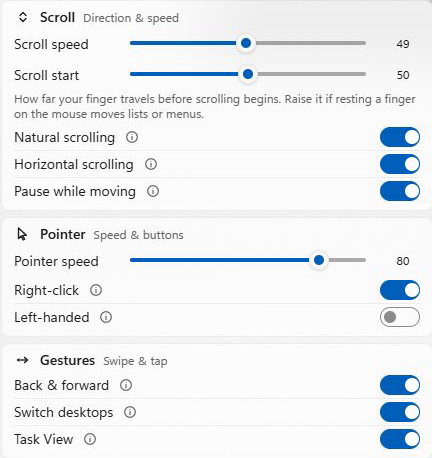
Download Tenon and try Pro free for 30 days. No account or card is needed to start. Install Tenon, open its Magic Mouse panel and adjust Scroll speed. If resting a finger triggers unwanted scrolling, increase Scroll start, which controls how far your finger moves before scrolling begins.
If scrolling worked and then stopped
- Re-pair the mouse: remove it from Bluetooth settings, then add it again.
- Check the battery: a Magic Mouse with a low battery can stay connected but behave erratically.
- Remove duplicate entries: if the mouse appears twice in Bluetooth, delete both and re-pair.
- Reinstall the driver after a major Windows update, which can replace it.
Frequently asked
Why is my Magic Mouse not scrolling on Windows?
Pairing can provide pointer movement and clicks without enabling the Magic Mouse touch surface. Scrolling needs a compatible driver. If one is already installed, check its settings, your connection and the mouse battery. Tenon supports scrolling on USB-C Magic Mouse and Lightning Magic Mouse 2 A1657.
Does Magic Mouse scrolling work on Windows 11?
Yes, with a driver that supports your exact mouse and Windows version. Tenon supports USB-C Magic Mouse and Lightning Magic Mouse 2 A1657 on Windows 11 and Windows 10 22H2, x64 only. The original AA-battery Magic Mouse and Windows on ARM are not supported by Tenon.